
E-readers · Library setup
Library books on a Kindle with Libby: how it works and what won't transfer
A library card can make a Kindle much cheaper to own. The free Libby app can send many library ebooks straight to it. But the handoff runs through Amazon's website, it only works with some libraries, and a few things never make the trip. Here's how it works, and where it breaks, before you count on it.
By Adam Anderson, Editor and CEO, Gearsentials
This article contains paid Amazon links. Gearsentials may earn a commission from qualifying purchases. Affiliate standards.
The two Kindles in this guide
Paid links. Gearsentials may earn a commission from purchases.
Who can do this
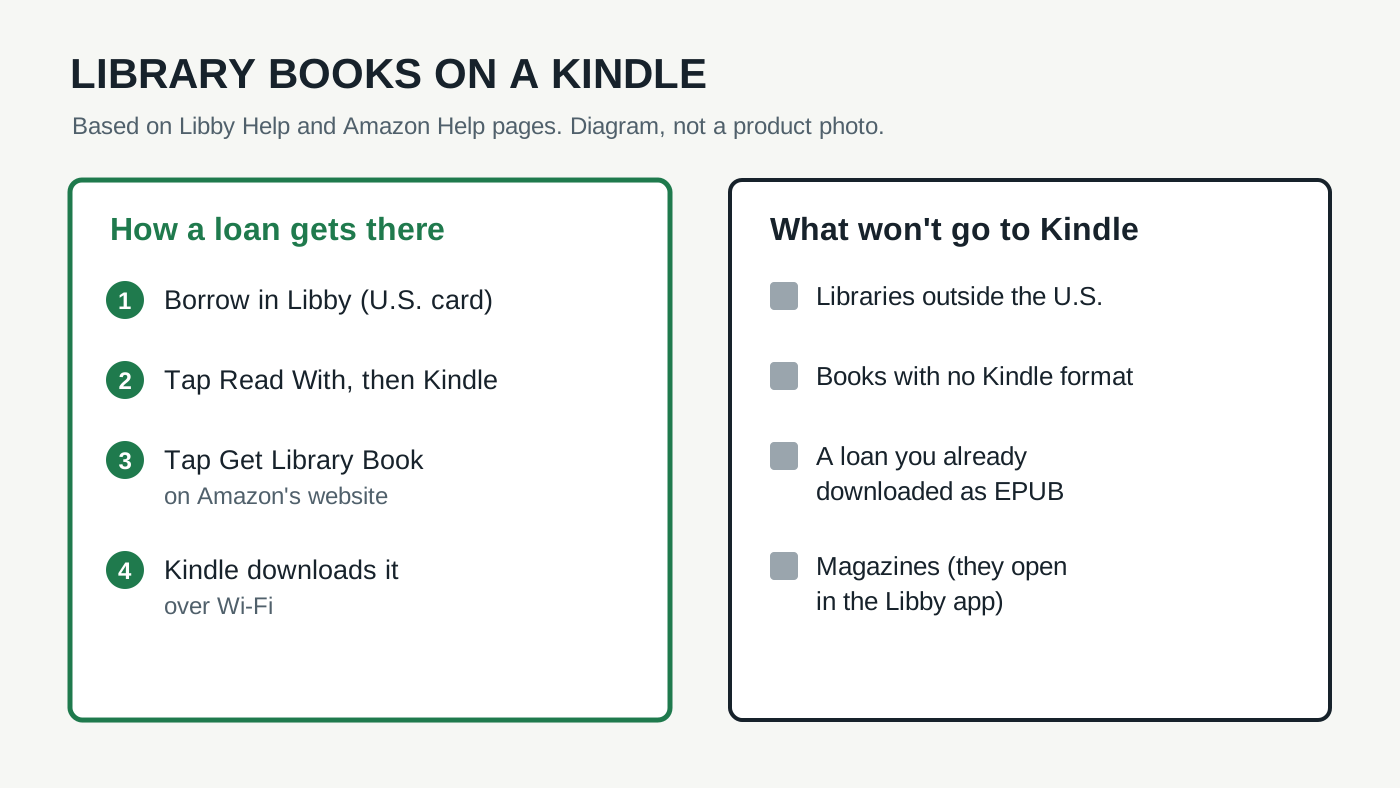
You need two things: a card from a public library that uses Libby, and a library in the U.S. That second part is the big one. Libby says plainly that Kindle Books are for U.S. libraries only. If your library is somewhere else, the Kindle setting just won't show up in the app.
Amazon tells the same story from its side. Its Kindle help page, "Check Out or Return a Public Library Book," says eligible library books reach Kindles in the U.S. through OverDrive, the company behind Libby. It also tells you to check that your own library takes part and offers Kindle books. OverDrive calls itself the only supplier of Kindle-ready ebooks to U.S. public libraries. So if your library isn't in Libby, there's no side door.
Amazon's steps ask for a library card, its PIN and your Amazon account. Nothing in them calls for a subscription. And the model doesn't matter here. The loan lands in your Amazon account, so a Paperwhite, a Colorsoft or the Kindle phone app all get the same book.
Sending a loan to your Kindle
Borrow the book in Libby first. Then follow Libby's own steps:
- Open your Shelf and tap Loans at the top.
- Tap Read With, then Kindle. Libby opens Amazon's website.
- Sign in if Amazon asks. Use the same Amazon account your Kindle is registered to, a point SlashGear stresses in its walkthrough.
- Tap Get Library Book. The book now shows up on the devices tied to that account.
Your Kindle needs Wi-Fi to pull the book down. Amazon also warns that some titles may need a USB transfer from a computer instead. Most people won't hit that, but it's why a book can sit in your Amazon account and not on the Kindle.
One setting saves taps. In Libby, open Menu, then Read Books With, and choose Kindle. Libby will then default to Kindle for every book. You can still switch a single loan from Manage Loan.
When the Kindle option vanishes
This is the most common snag. Libby's help page lists three reasons, and each has a different fix:
- The book has no Kindle version. Tap the cover and look under Read With. If Kindle isn't listed, you can only read it in Libby. To avoid this, OverDrive says you can filter searches to Kindle books before you place a hold.
- You already downloaded another format. If you grabbed the EPUB in Libby or on the library's OverDrive site, you can't send that loan to Kindle. You'd have to borrow it again.
- Your reading preference says Libby. Change it under Menu, then Read Books With.
The EPUB trap is the one that stings. On a popular book, borrowing it again can mean going back to the end of the holds line.
Kindle Paperwhite 2024
Paid links. Gearsentials may earn a commission from purchases.
Kindle Paperwhite 2024, 16GB, with lockscreen ads, ASIN B0CFPJYX7P. Library loans from U.S. Libby libraries arrive over Wi-Fi like any Kindle book.
When the book doesn't arrive
If Amazon shows the loan but your Kindle doesn't, first check that the Kindle is on Wi-Fi and signed in to the right account. Then Libby suggests pushing it again from Amazon:
- Go to Your Books on Amazon's website and tap the book's cover.
- Open the more-options menu and choose Deliver or remove from device.
- Pick your Kindle and tap Save.
If that fails, Libby's next steps are to deregister and re-register the Kindle, then contact Amazon. At that point the library isn't the problem anymore.
Returning a book early
Loans return themselves on the due date, and SlashGear notes Libby doesn't charge late fees. But returning early helps the next person on the holds list, and it frees up one of your loan slots. Here's the odd part: for Kindle loans, the Return Early button in Libby just sends you to Amazon. According to Libby's returns page, you have two ways to do it:
- On the Kindle. Find the book on the Home or Library screen, tap the menu on its cover, then choose Remove from Library. Older Kindles call it Return to Public Library.
- On Amazon's website. In Libby, choose Manage Loan, Return Early, then Return with Kindle. On Amazon's Your Books page, open the book and tap Return borrowed book. Amazon's own help page also lists a Return This Book option under Manage Your Content and Devices.
Then go back to Libby and tap Yes, I've Returned It. If the loan still shows on your Shelf, sync the Shelf by hand. Those limits are real: Brooklyn Public Library, for example, caps card holders at 20 digital loans and 10 holds. Your library will set its own numbers.
What stays in Libby
A Kindle only gets the ebooks. Everything else your library lends through Libby stays on your phone or tablet.
- Audiobooks. Libby's Shelf has an Open Audiobook button that plays them in the app. Read With, the Kindle handoff, is the option for books.
- Magazines. They sit in Libby's Magazine Rack and open when you tap the cover in the app.
- Books with no Kindle format. As above, those are Libby-only.
Fire tablets are a separate case. Libby's Kindle page tells Fire owners to install the Libby app and read there. A Kindle e-reader can't install apps, so for magazines and audiobooks your phone is the backup.
Non-Kindle e-readers work differently. Libby says NOOK-style readers can load EPUB loans through Adobe Digital Editions on a computer. A Kindle skips that, because Amazon delivers the loan for you.
The final decision
If you live in the U.S. and your library is on Libby, a Kindle is a very good library reader. Set Kindle as your default in Libby, filter searches to Kindle books, and most loans take four taps and a Wi-Fi connection. The one habit worth learning is to never tap the EPUB download on a book you plan to read on the Kindle.
For a mostly-novels library habit, the Paperwhite is the simple pick. The library file is the same on either model, so color only matters if you borrow comics, graphic novels or kids' picture books. That's when the Colorsoft is worth a look. Our Colorsoft vs Paperwhite guide covers how color pages look on a seven-inch screen.
Skip the Kindle-for-the-library plan if your library is outside the U.S., isn't on Libby, or lends you mostly audiobooks and magazines. A phone or tablet with Libby will serve you better. And if you're choosing between generations, check our 2026 vs 2024 Kindle guide first. Our links point to the 2024 models.
For U.S. library readers
Paid links. Gearsentials may earn a commission from purchases.
Paperwhite for mostly text; Colorsoft if you borrow comics, graphic novels or picture books. Both are 2024 models.
Sources
- Libby Help: Reading Kindle Books on a Kindle ereader
- Libby Help: Why can't I send a book to Kindle?
- Libby Help: Changing your reading preference for books
- Libby Help: Trouble getting a book from Amazon to your Kindle
- Libby Help: Returning Kindle Books
- Libby Help: Where are my loans and magazines?
- Libby Help: Can I transfer books to an ereader from Libby?
- Amazon Help: Check Out or Return a Public Library Book (Kindle Content Help on amazon.com)
- OverDrive: Kindle ereaders and Amazon Fire tablets
- SlashGear: How to download Libby books on your Kindle
- Brooklyn Public Library: Libby