
Travel routers · Remote access
GL.iNet Slate 7 to your home network: Tailscale or a WireGuard server?
You packed the Slate 7 so the hotel Wi-Fi would behave. Now you want something harder: the NAS in your closet, or a bank that only trusts your home address. Two tools can get you there, and the right one depends on a number your internet provider probably never told you about.
By Adam Anderson, Editor and CEO, Gearsentials
This article contains paid Amazon links. Gearsentials may earn a commission from qualifying purchases. Affiliate standards.
The router in this guide
Paid links. Gearsentials may earn a commission from purchases.
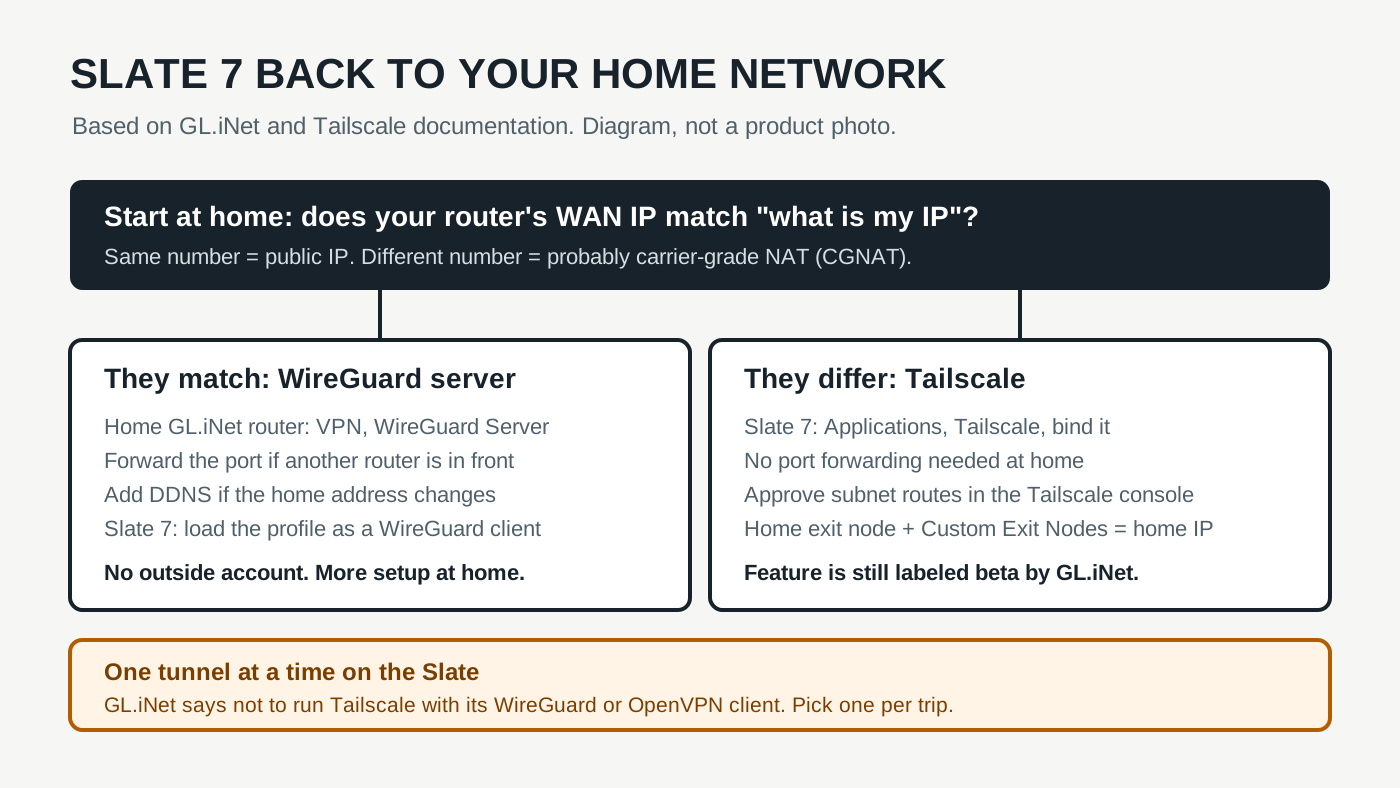
Two different jobs hide in one question
"Connect back home" can mean two things, and they need different settings. The first is reaching your stuff: a NAS, a printer, a security camera's web page, the admin panel of your home router. Your normal internet traffic can keep going out through the hotel. Only the home-bound traffic takes the tunnel.
The second is looking like you're home. Every website sees your home internet address, which is what a picky bank or a region-locked streaming account wants. That means sending all of your traffic home first, then out to the internet. It's slower, because your home upload speed becomes the ceiling for everything you do on the road.
Know which job you're doing before you open a menu. The first one is easy with either tool. The second needs an extra piece at home.
The check to do before you leave
This takes two minutes and decides most of the article. A traditional VPN server at home only works if the outside world can knock on your front door. That needs a public IP address. GL.iNet's public IP guide gives the test. Log in to your main home router and note its WAN IP address. Then search "what is my IP" from a device on the same network. If the two match, you have a public IP. If they don't, you don't, and no amount of port forwarding will fix it.
The usual reason they differ is carrier-grade NAT, or CGNAT. Tailscale's explainer on NAT traversal describes it plainly: providers no longer have enough addresses to give every home its own, so they put many homes behind one shared public address. Your router's WAN address is a private one inside the provider's network, so a server at home has no front door for the Slate to knock on.
Option 1: a WireGuard server at home
If your addresses match, the classic route works. You run a WireGuard server on a router at home and load a profile for it on the Slate. This guide follows GL.iNet's menus, so it assumes a GL.iNet router at home too. GL.iNet's WireGuard Server guide lays out the steps:
- On the home router, go to VPN, WireGuard Server and click Generate Configuration.
- Add a profile for the Slate. GL.iNet offers it as a QR code, plain text or a
.conffile. - Click Start, then load that profile on the Slate as a WireGuard client.
- Test from a phone on cellular data first. If its IP changes to your home address, the server works.
Three snags show up again and again. If another router sits in front of the GL.iNet one, as with many provider gateways, you'll need to forward the WireGuard port on it. If your home address changes now and then, GL.iNet suggests turning on its Dynamic DNS and using that name as the server address. And watch for address clashes. GL.iNet's own example is an Xfinity gateway at 10.0.0.1 colliding with the server's tunnel address. The fix is to change the tunnel to something like 10.1.0.1/24.
The reward is a setup with no outside account and nothing to renew. The cost is a server you now own. GL.iNet's Slate 7 page lists WireGuard at up to 490Mbps. That's in client mode on a local test network, and GL.iNet adds that speeds are lower when a router is the server. In practice, your home upload speed is likely to be the slower link anyway.
Option 2: Tailscale on the Slate
If your addresses didn't match, this is the one to use. It often wins even when they do. Tailscale is built on WireGuard but handles the hard part, finding a path between two devices that are both behind NAT. Its NAT traversal write-up explains that it tries for a direct connection and, when that fails, falls back to its own relay servers. A relay is slower than a direct link, but it means CGNAT stops being a dead end. There's no port to forward at home.
The Slate 7 (GL-BE3600) is on GL.iNet's Tailscale support list. The feature arrived in firmware v4.2, and GL.iNet still calls it beta. Setup is short:
- Make a Tailscale account and add one or two of your own devices first, so you can test.
- On the Slate, go to Applications, Tailscale, turn it on and click Apply.
- Open the Device Bind Link it shows, sign in to Tailscale and approve the router.
To reach a NAS at home, something at home needs Tailscale too. It could be the NAS itself, a computer, or a home GL.iNet router with Advertise LAN Subnetsturned on. That switch was called Allow Remote Access LAN before firmware v4.9. Tailscale's subnet router docs explain why it matters. A subnet router lets devices join your Tailscale network without installing the app, which is handy for printers and cameras that can't run it. One step catches nearly everybody: the routes do nothing until you approve them in the Tailscale admin console.
Coming out at your home IP
Reaching your NAS doesn't change what websites see. For that, you need an exit node at home, a device that sends your traffic out to the internet from your house. Tailscale's exit node docs build in three locks on purpose. The home device has to offer itself as an exit node, an admin has to allow it, and each device that uses it has to opt in.
GL.iNet's docs cover both ends. A home GL.iNet router on firmware v4.9 or later has a Run Exit Nodeswitch. GL.iNet recommends disabling key expiry for that router in the Tailscale console, so the tunnel doesn't quietly stop working mid-trip when its login times out. On the Slate, turn on Custom Exit Nodesand pick your home device. Every phone, laptop and streaming stick on the Slate's Wi-Fi then goes out through home, including any that can't run Tailscale. If the Slate's devices lose internet after that, GL.iNet says the usual cause is the Slate's subnet routes still waiting for approval in the console.
The one-tunnel rule
Here's the limit that should shape your plan. GL.iNet says not to run Tailscale alongside the Slate's OpenVPN client, WireGuard client, ZeroTier and a few other features. They're all built on the same plumbing, and running them together can cause routing conflicts. If you set the Slate up with a paid privacy VPN, as our hotel Wi-Fi guide describes, that tunnel and Tailscale are a pick-one choice. They can't both be on.
Most trips need one or the other anyway. If you want the hotel to see nothing and websites to see a VPN company, use the paid VPN. If you want your files and your home address, use Tailscale or your own WireGuard server. Decide before you leave. Switching tunnels from a hotel room, with the login page already fighting you, is no fun.
The hotel login still comes first either way. Join the hotel network, get past its login page, and only then start the tunnel.
Do you need the router at all?
Maybe not. If it's just you and one laptop, install Tailscale on the laptop and you're done. You get the same NAS access and the same exit node, with no router in the bag. The Slate earns its place when the devices can't do this themselves. A game console has no Tailscale app, and a work laptop may not let you install one. Behind the Slate with an exit node, all of them come out at home without touching their settings.
It also earns its place when you travel with a family. One hotel login and one tunnel cover everybody. There's no need to set up Tailscale or a VPN on every child's tablet.
GL.iNet Slate 7
Paid links. Gearsentials may earn a commission from purchases.
GL.iNet Slate 7 (GL-BE3600) dual-band Wi-Fi 7 travel router, ASIN B0F2MR53D6. On GL.iNet's Tailscale support list; WireGuard and OpenVPN client and server built in. No internal battery.
The final decision
Do the public-IP check before you pack. If your home router's WAN address matches what websites see, a WireGuard server on a home GL.iNet router is the self-owned option. It costs you some port forwarding and maybe a DDNS name, and in return there's no outside account. If the addresses don't match, skip that path. Use Tailscale, approve the routes, and add a home exit node only if you need to look like you're home.
The Slate 7 is a good buy for this if you travel with devices that can't run Tailscale, or with several people sharing one hotel login. It's on GL.iNet's Tailscale list, runs WireGuard as client or server, and puts every device behind one tunnel.
Skip it if your only goal is one laptop reaching one NAS. Tailscale on the laptop does that job with no extra hardware. And if you count on a paid VPN every night, remember the rule that matters most here. On the Slate, that VPN and Tailscale take turns.
If the router fits your trip
Paid links. Gearsentials may earn a commission from purchases.
Best for travelers routing a game console or a whole family through home, or anyone behind CGNAT who needs Tailscale at the router. Plan on an outlet or USB-C power.
Still choosing a travel router? Our GL.iNet Slate 7 vs TP-Link Roam 7 vs ASUS RT-BE58 Go comparison covers ports, power, tethering and each brand's VPN tools.