
Travel routers · Hotel setup
GL.iNet Slate 7 on hotel Wi-Fi: setup, the login page and when the VPN goes on
It's late, you're tired, and the Slate 7 says it's connected. Then every page on your laptop fails. That's almost always the hotel's login page getting stuck behind a VPN, a DNS setting or a device limit. The fix is mostly about doing things in the right order.
By Adam Anderson, Editor and CEO, Gearsentials
This article contains paid Amazon links. Gearsentials may earn a commission from qualifying purchases. Affiliate standards.
The router in this guide
Paid links. Gearsentials may earn a commission from purchases.
Before you leave home
Do the boring setup at your own desk, where a mistake costs you nothing. GL.iNet's Slate 7 user guide walks through it: power it on, join its Wi-Fi with the name and password on the label, open 192.168.8.1in a browser and set an admin password. You can also use the GL.iNet app. While you're in there, check the Upgrade page for new firmware.
Then test one hotel-style connection at home. Use Repeater mode to join your home Wi-Fi or your phone's hotspot, and make sure a laptop on the Slate can load pages. If that fails at home, it will fail at the hotel too. One more packing note from TechRadar's review: there's no battery inside, so it has to stay plugged in. The box includes a USB-C power adapter with EU, UK and AU plugs, and TechRadar ran it from a power bank at a coffee shop.
Join the hotel network in Repeater mode
Repeater is the mode for hotel Wi-Fi. The Slate joins the hotel's network and then puts out its own private Wi-Fi for your devices. GL.iNet's Repeater guide says it runs in WISP mode by default. That means the Slate makes its own network and acts as a firewall between your gear and everyone else on the hotel Wi-Fi.
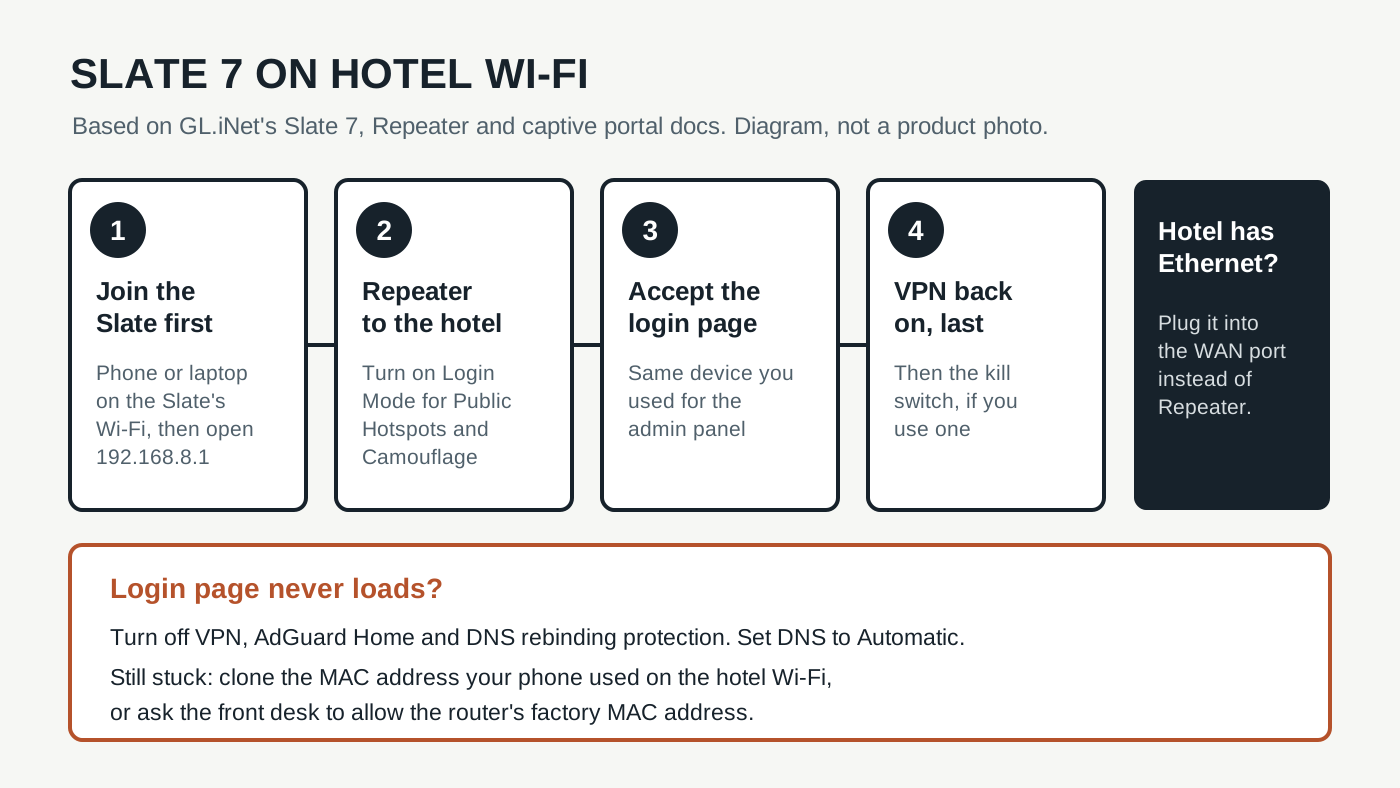
- Connect your phone or laptop to the Slate's Wi-Fi and open the admin panel.
- Go to Internet, find Repeater and click Connect.
- Pick the hotel network. Before you click Apply, turn on Auto-Enable Login Mode for Public Hotspots and Enable Camouflage.
- Turn on Remember so it rejoins the same network tomorrow.
Those two switches do the heavy lifting. Login Mode kicks in when the Slate is on the hotel network but can't reach the internet. It pauses some services and sets DNS to automatic so the login page can load. Camouflage makes the Slate copy the MAC address of the device you're using for setup, so the hotel sees something that looks like your phone. Both arrived in firmware v4.6.
Two smaller options help in big hotels. Lock BSSID keeps the Slate on one access point instead of hopping between dozens that share a name. If you can't see the network at all, GL.iNet notes the list only shows channels the router supports, and Join Other Network lets you type the name by hand.
GL.iNet Slate 7
Paid links. Gearsentials may earn a commission from purchases.
GL.iNet Slate 7 (GL-BE3600) dual-band Wi-Fi 7 travel router, ASIN B0F2MR53D6. Power adapter with travel plugs included; no internal battery.
Get the login page to appear
Most hotels show a web page where you type a room number or click Accept before anything works. That page is the captive portal, and the Slate can't fill it in for you. Use the same phone or laptop that you used for setup, open a browser and try any plain web address. GL.iNet's captive portal guide says to wait about a minute for the redirect. On a phone, turning Wi-Fi off and back on usually makes the login sheet pop up.
Here's the tradeoff Login Mode makes. GL.iNet warns that while it's on, your browsing can show up to the hotel, because DNS goes through their network. That's fine for the 30 seconds it takes to accept the terms. It's not where you want to stay.
Turn the VPN back on, last
The VPN is the reason a lot of people buy a Slate 7. Set it up in the admin panel once, and every device behind the router uses it. But the order matters. A VPN that tries to connect before you've logged in has nowhere to go. A kill switch then does exactly what it promises and blocks everything, including the login page.
So: log in to the hotel first, then go to VPN, VPN Dashboard and start your tunnel. GL.iNet's VPN Dashboard guide explains the kill switch: if the VPN drops, traffic that should go through it is blocked instead of leaking out over the hotel network. GL.iNet tells you to check the kill switch settings before you turn the tunnel on. Once it's up, load a page and confirm your IP address shows the VPN's location, not the hotel's.
Speed shouldn't be the problem. TechRadar's spec list puts the Slate at about 540Mbps over WireGuard and about 100Mbps over OpenVPN. That's a big gap, so pick WireGuard if your VPN offers it. On typical hotel Wi-Fi, the hotel is the slow part.
Want the tunnel to lead home instead of to a VPN company? Our Slate 7 home network guide covers Tailscale, a home WireGuard server and why Tailscale can't run alongside a paid VPN on the Slate.
When the login page never loads
Sometimes the Slate says it's connected and the portal still won't show. One Slate 7 owner on GL.iNet's forum hit that at two hotels in a row, with a "DNS_PROBE_FINISHED_NO_INTERNET" error even in public hotspot mode. GL.iNet's captive portal guide lists the fixes. Work through them in this order:
- Clear the blockers. Under Network, DNS, turn off DNS Rebinding Attack Protection and set Mode to Automatic. Turn off every VPN connection and AdGuard Home. Then refresh the portal page.
- Clone your phone's hotel MAC address.Some hotels only let in devices they've seen. Join the hotel Wi-Fi on your phone first and note the Wi-Fi address it used. On an iPhone that's in Settings, Wi-Fi, then the hotel network. In the Slate's Repeater settings, set MAC Mode to Clone and enter that address. A reboot may be needed.
- Ask the front desk.GL.iNet's last step is asking the hotel to allow the router. Give them the factory MAC address, not a random or cloned one.
That forum case had a twist worth knowing. The owner later found Repeater failed even at home, and a factory reset fixed it after months of changed settings. If a clean test at home fails too, back up anything you need and reset before blaming the hotel.
A note on device limits. GL.iNet points out that the hotel sees the Slate as one device, so a family can share one login. That's handy. If the hotel's terms set a device limit, though, asking the desk is the cleaner fix.
If the room has an Ethernet jack
Wired is usually the easier path. Plug the hotel cable into the Slate's WAN port, and the user guide says a green dot shows up in the Ethernet section when it's online. TechRadar Pro calls this out as one of the Slate's best uses: it has two 2.5GbE ports, so you can take a hotel's wired line and share it over Wi-Fi. Many wired hotel jacks still have a login page, so the same portal steps apply. You just skip the Wi-Fi hunt.
No hotel Wi-Fi worth using? The user guide also covers USB tethering. Plug your phone into the Slate's USB port, turn on USB tethering, and click Connect in the Tethering section.
Lock the touchscreen before you leave the room
The screen is handy for a quick status check. It's also a privacy problem, and it's the main complaint in TechRadar's review. By default, it can show your Wi-Fi name, password and a QR code to anyone who picks it up. The user guide lists the fixes in the display settings. You can hide functions from the screen, set an auto-lock delay from 1 to 30 minutes, or turn on a screen passcode. Turn on the passcode before the first trip. Housekeeping doesn't need your Wi-Fi password.
The final decision
The Slate 7 handles hotel Wi-Fi well once you follow one rule: hotel login first, VPN second. Turn on Login Mode and Camouflage when you join the network, accept the portal on the device you set up with, then start the tunnel and its kill switch. That order avoids most of the "connected but no internet" nights.
It's a good buy if you travel with a laptop, a phone and a tablet or two and want them all behind one private network and one VPN. The dual 2.5GbE ports make it even better in hotels that still have a wired jack, and WireGuard is quick enough that the router won't be the slow link.
Skip it if you just want one laptop online for a weekend. Your phone's hotspot or the hotel Wi-Fi alone is simpler. And if you hate digging through router menus, keep in mind that a stuck portal means DNS settings and MAC addresses, not a single button. Do one practice run at home before the trip. That one test tells you more than any spec sheet.
If you're taking a router on the trip
Paid links. Gearsentials may earn a commission from purchases.
Best for travelers sharing one hotel login across several devices, or running one VPN for everything. Plan on an outlet or a USB-C power bank; there's no battery inside.
Still choosing a travel router? Our GL.iNet Slate 7 vs TP-Link Roam 7 vs ASUS RT-BE58 Go comparison covers ports, power, phone tethering and each brand's hotel login workflow.
Sources
- GL.iNet: Slate 7 (GL-BE3600) user guide
- GL.iNet: Connect to the internet via Repeater
- GL.iNet: Connect to public hotspots with a captive portal
- GL.iNet: VPN Dashboard
- TechRadar: GL.iNet Slate 7 portable router review
- TechRadar Pro: GL.iNet Slate 7 travel router review
- GL.iNet Forum: Slate 7 no internet, DNS repeater issues