
Desk accessories · Mac
MX Master 4 on a work Mac: what works if IT blocks Logi Options+?
The MX Master 4 costs what it does because of the extra buttons, the haptic thumb panel and the Actions Ring. Nearly all of that lives in one Mac app. On a company laptop, someone else may decide whether that app gets to run.
By Adam Anderson, Editor and CEO, Gearsentials
This article contains paid Amazon links. Gearsentials may earn a commission from qualifying purchases. Affiliate standards.
The mice in this guide
Paid links. Gearsentials may earn a commission from purchases.
The problem with a locked-down Mac
Plenty of people buy this mouse for the office, and plenty of office Macs are managed. That usually means you can't install apps yourself, or you can install them but can't approve the privacy prompts that follow. Either way, the question is the same. Is a premium mouse still worth it if its app never gets past the IT department?
Logitech's own documents answer most of it. The short version is that the hardware works without the app, but the parts you're paying extra for mostly don't. The details below decide whether that's a problem for you.
What the mouse does with no app at all
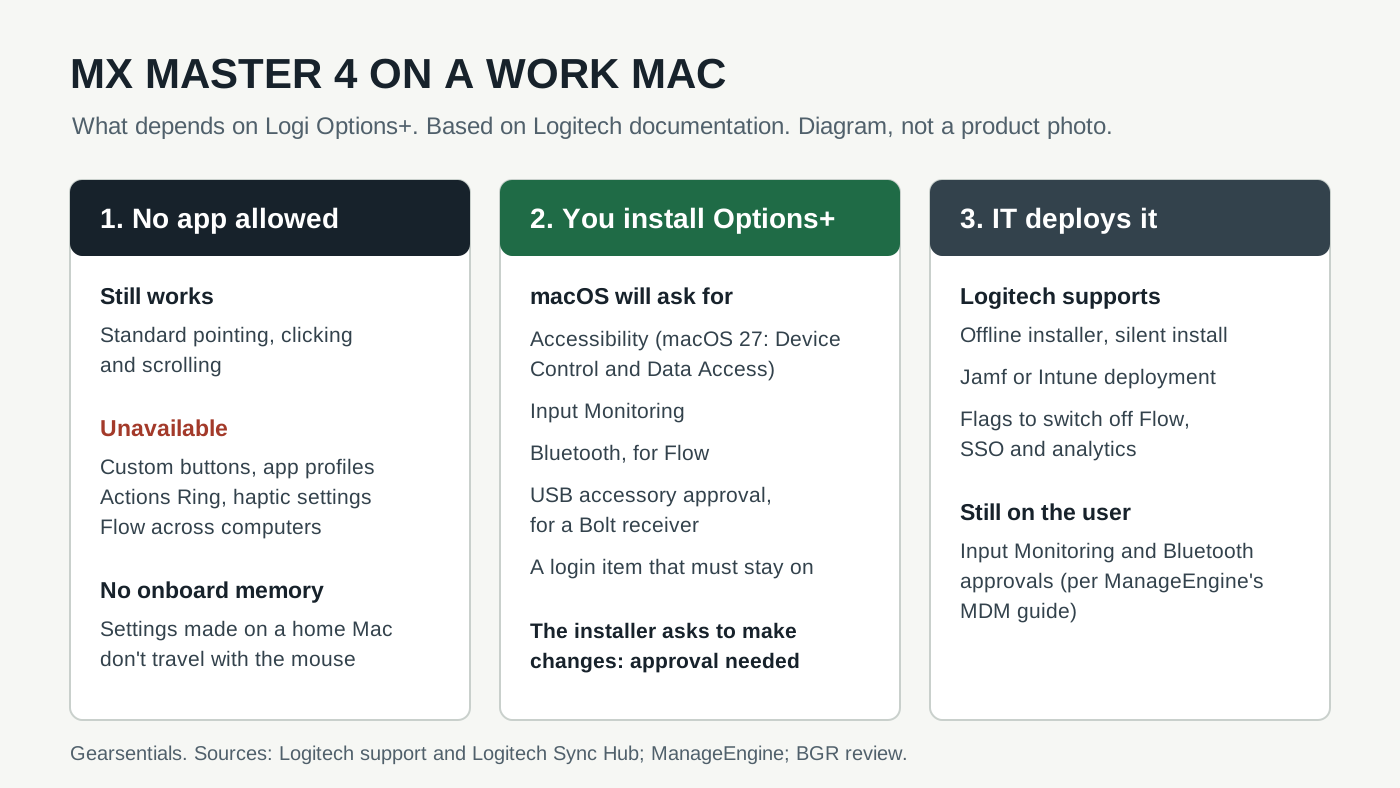
It still works as a mouse. When an expired signing certificate broke Options+ on Macs in January 2026, Logitech's IT support FAQ said standard mouse functions kept working. Devices fell back to "default out-of-box behavior," while every software-based customization stayed unavailable until the app was fixed. That was an accident, not a test, but it shows the split clearly.
Logitech doesn't publish a button-by-button list for a Mac with no app, so don't count on any extra button doing something useful out of the box. What's clear is what you lose. Logitech's MX Master 4 for Mac product page marks the programmable functions and the customizable haptic feedback with "Requires Logi Options+ app." Macworld's review describes the Actions Ring, the on-screen menu of shortcuts behind the thumb panel, as a feature of the Options+ app. Flow, which moves your cursor between computers, is an Options+ feature too.
One more catch. BGR's review points out that the MX Master 4 has no onboard memory for custom settings. You can't set it up on your home Mac and carry those buttons into the office. The work Mac needs its own copy of Options+, or the buttons go back to plain.
What Options+ asks macOS for
Suppose IT lets you install the app. It still needs a list of macOS permissions, and each one is a switch that a managed Mac can hold back. Logitech's macOS permissions page lists them:
- Accessibility. Logitech says the app needs it for most basic features, naming scrolling, back and forward, gestures, volume and zoom. In macOS 27 this setting is renamed Device Control and Data Access.
- Input Monitoring. Needed for all the features the app turns on.
- Bluetooth.Needed to spot a mouse that isn't connected to that Mac right now, which is how Flow finds it. Without it, you can't Flow into that computer.
- USB accessory approval. A Logi Bolt receiver plugged into a USB-C port triggers a macOS prompt that you have to allow.
- Login items. Options+ adds a background item. Turn it off and Logitech says customization stops and the app hangs on its loading screen.
Read that list the way your security team will. Input Monitoring means the app can see your keystrokes and clicks. That's the point, since it's how a button press becomes a shortcut, but it's also exactly the kind of access IT likes to restrict. BGR flagged the same thing as a privacy trade-off. None of this means Logitech is doing anything shady. It means the request isn't small.
Getting the app on in the first place may need approval too. Logitech's install steps note that the Mac installer asks you to enter your details so it can make changes. If your work account can't approve that, you're already waiting on IT.
What IT can deploy for you
This is the good news, and it's worth bringing to your IT team. Options+ isn't a consumer-only app that admins have to fight. Logitech's mass installation guide for macOS covers deploying it through Intune or Jamf with a silent install. The installer takes flags that switch off Flow, sign-in and analytics, so a company can allow the button customization while leaving out the parts it doesn't want.
Admins can also pre-approve some of the prompts. ManageEngine's deployment guide for its Endpoint Central MDM pushes a privacy profile that grants Accessibility before the app arrives. It also says Bluetooth and Input Monitoring still have to be approved by the user. So expect at least one or two prompts on your screen even when IT does everything right.
The January certificate problem is a fair thing for IT to ask about. Logitech's FAQ says it affected every Mac running Options+ until the fixed version, 1.98.824948 or later, was installed. The fix shipped as a normal installer that works through standard MDM tools. The mouse kept pointing and clicking the whole time.
Bolt receiver or Bluetooth on a work Mac
This is where the two versions of the mouse differ. Logitech lists a USB-C Logi Bolt receiver with the standard MX Master 4, though one Amazon listing contradicts itself on that, so check the exact box. The MX Master 4 for Mac comes without one and connects over Bluetooth, though it can use a Bolt receiver bought separately. Our MX Master 4 vs MX Master 4 for Mac comparison covers the rest of the differences, which are mostly colors and box contents.
On a managed Mac, the receiver adds a step. macOS asks you to allow a new USB accessory when you plug it in, and some companies restrict USB devices outright. Bluetooth skips that prompt but needs Bluetooth to be allowed. Neither connection changes what Options+ needs. Logitech's spec sheet lists the same 125Hz report rate for both, so the receiver isn't a speed upgrade either way.
Compare the two editions
Paid links. Gearsentials may earn a commission from purchases.
The one question to ask IT
Don't ask whether you can use a Logitech mouse. The answer is almost always yes, and it tells you nothing. Ask this instead: "Can Logi Options+ be installed on my Mac with Accessibility and Input Monitoring allowed?" If the answer is yes, or yes with Flow turned off, you'll get nearly the whole mouse. If the answer is no, you'll get a well-made, heavy, right-handed mouse with a nice scroll wheel and buttons that don't do much.
It helps to send Logitech's mass installation and permissions pages along with the question. A request that comes with the vendor's own deployment steps is easier to approve than "please let me install a mouse app."
The final decision
Buy the MX Master 4 for a work Mac when IT will deploy Options+ or let you approve its permissions. That's the setup Logitech designed it for, and the extra buttons, haptics and Actions Ring all depend on it. If you also bring a home Mac or a Windows PC into the mix, the standard edition is the safer pick. Logitech lists the Bolt receiver with it and positions it for both platforms. If your work Mac allows Bluetooth and you want Space Black or White Silver, the Mac edition is fine and gives up nothing else.
Skip both if IT has already said no to Options+. Without the app, you'd pay for features you can't switch on, and the settings you make at home won't follow the mouse to work. A simpler mouse does the plain pointing and clicking just as well. And if you're not sure yet, ask the question above before you order.
If IT says yes to Options+
Paid links. Gearsentials may earn a commission from purchases.
Sources
- Logitech: Logi Options+ permission prompts on macOS
- Logitech: macOS certificate issues, IT support FAQs
- Logitech Sync Hub: Options+ mass installation (macOS)
- Logitech Sync Hub: Download and install Options+
- Logitech: MX Master 4 for Mac product page
- Logitech: MX Master 4 for Mac specifications
- ManageEngine: Deploy Logi Options+ silently on Mac
- BGR: Logitech MX Master 4 review
- Macworld: Logitech MX Master 4 review