
Desk setups · Docking stations
UGREEN Revodok Pro 3121: will it really run three monitors from your laptop?
Three monitors, one cable. That's the pitch on UGREEN's Amazon listing for the Revodok Pro 3121, and the dock does have the ports for it. Whether you get three different screens depends on something the dock can't control: the laptop at the other end of the cable.
By Adam Anderson, Editor and CEO, Gearsentials
This article contains paid Amazon links. Gearsentials may earn a commission from qualifying purchases. Affiliate standards.
The two docks in this guide
Paid links. Gearsentials may earn a commission from purchases.
Three video ports, three different rules
The Revodok Pro 3121 (UGREEN model 55767) has two HDMI ports and one DisplayPort. It splits one USB-C video signal into three using a method called MST, short for Multi-Stream Transport. Amazon's spec table for this listing names MST as its display scheme.
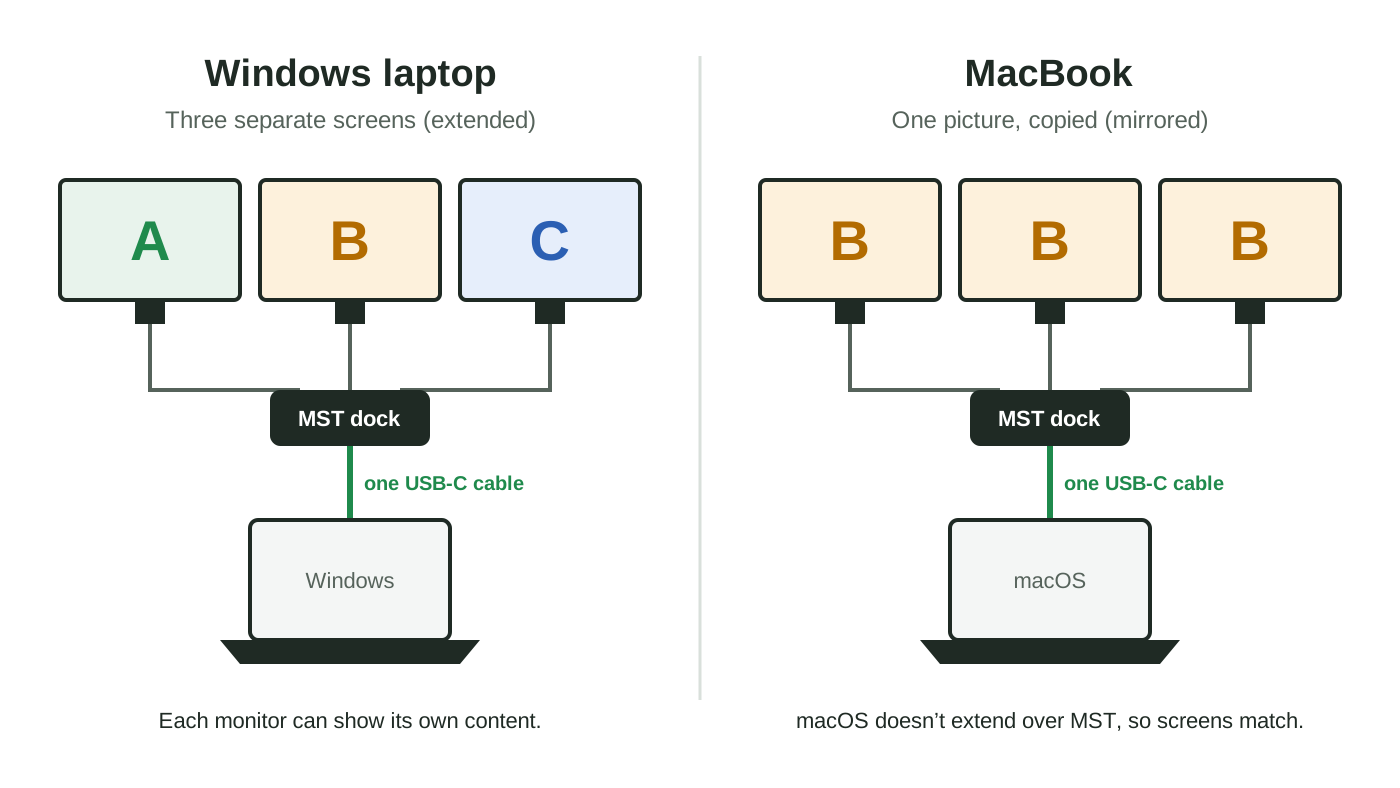
MST is the whole story here. Windows and ChromeOS handle it well. macOS doesn't use it to extend a desktop. Plugable, a dock maker with no stake in this UGREEN model, puts it bluntly in its MST support article: on a Mac, MST-connected displays are mirrored, not extended.
UGREEN says the same thing about its own dock. The first line of the Amazon listing warns that macOS only supports mirroring mode, where every external screen shows the same picture. UGREEN says the dock isn't recommended for MacBook owners who want different content on each monitor.
On a Windows laptop: three screens, with a refresh-rate catch
On a compatible Windows laptop, each monitor can be its own desktop. That's what the dock is built for. But every screen you add shares the same single cable, so UGREEN lists lower refresh rates as the count goes up.
| Monitors | Top listed mode | What it means at a desk |
|---|---|---|
| One | 4K at 120Hz | Smooth scrolling on a fast monitor |
| Two | 4K at 60Hz each | Normal office and editing use |
| Three | 4K at 30Hz each | Fine for documents; the mouse can feel sluggish |
That last row is the one to plan around. A screen that refreshes 30 times a second is fine for a spreadsheet you glance at. It looks choppy when you drag windows or scroll a long page. If you need three 4K screens at 60Hz, this isn't the dock. UGREEN only lists 4K modes, so if your third screen is a 1080p side monitor for chat and email, treat its refresh rate as something to confirm on your own laptop, not a promise.
UGREEN also adds a plain note: if video acts up, check your operating system version and make sure your drivers are current. That's worth doing before you blame the dock.
For Windows and ChromeOS laptops
Paid links. Gearsentials may earn a commission from purchases.
Revodok Pro 3121, model 55767. Two HDMI plus one DisplayPort. Extended triple-monitor use needs Windows or ChromeOS.
On a Mac: why three screens show one picture
Plug the 3121 into a MacBook and you'll likely see the same image on every external monitor. That's not a broken dock. It's macOS ignoring MST for extended desktops, which is exactly what UGREEN and Plugable both describe.
A second limit sits on top of that. Apple caps how many external screens each Mac can drive at all, and a dock can't raise it. Apple's own pages for MacBook Air and MacBook Pro say a hub doesn't increase the maximum number of displays you can connect. M4 and M5 MacBook Air models top out at two external displays. CalDigit's TS4 page notes that M1, M2 and M3 Macs don't support dual monitors through their Thunderbolt ports.
So what should a Mac owner use? A Thunderbolt dock is the usual answer. The CalDigit TS4 is one we've covered before. CalDigit lists up to two displays on Macs that can drive them, including base M4 and M5 models and Pro and Max chips, plus 98W of laptop charging. It costs a lot more than the UGREEN, and it won't beat your Mac's own display limit either. Our Anker 575 vs CalDigit TS4 comparison goes deeper. The Anker 575 uses the same two-HDMI-plus-DisplayPort idea as the UGREEN, and Anker also says macOS mirrors its screens.
For Macs that need separate screens
Paid links. Gearsentials may earn a commission from purchases.
Thunderbolt 4 dock. CalDigit lists up to two displays on supported Macs. Check Apple's limit for your exact model first.
Check your laptop's USB-C port before anything else
Not every USB-C port carries video. Plugable's MST guide tells buyers to confirm the computer supports DisplayPort Alt Mode over USB-C first, and a port without it won't light up any of the dock's screens. Look for a DisplayPort or Thunderbolt logo next to the port, or check your laptop maker's spec page.
The DisplayPort version inside the laptop matters too. Notebookcheck's launch coverage of the Revodok Pro notes that a laptop with DisplayPort 1.4 and DSC compression can run two 4K screens at 60Hz. With an older DisplayPort 1.2 laptop on Windows, the second screen may drop to 1080p. So two laptops can plug into the same dock and get very different results.
The dock also isn't for phones or tablets. UGREEN says so twice in the listing.
Power and the other ports
The dock takes up to 100W from your own USB-C charger and passes up to 85W to the laptop. UGREEN keeps the other 15W for the dock's ports. That 85W covers most thin-and-light laptops, but a big gaming or workstation laptop that wants more will charge slower, or drain while you work. UGREEN asks for a charger rated 100W or higher and a 100W cable to get the full amount. The charging port only charges. It doesn't carry data or video.
The rest is a solid desk kit, per UGREEN's listing: two 10Gbps USB-C data ports, two USB-A 2.0 ports for a keyboard, mouse or mic, SD and microSD readers, Gigabit Ethernet and a 3.5mm audio jack. The USB-A ports are slow by design, so plug a fast external drive into USB-C instead.
Not sure whether you need a full dock at all? Our USB-C dock vs Thunderbolt dock guide walks through that choice first.
The final decision
Buy the Revodok Pro 3121 if you have a Windows or ChromeOS laptop with a video-capable USB-C port and you want three screens from one cable. It's the right tool for a two-monitor desk that sometimes adds a third, and its port mix covers everything else on a typical desk. Go in knowing three 4K screens run at 30Hz, so make the third one a slower side screen.
Skip it on a MacBook if you want different content on each monitor. That isn't a setting you can change later; it's how macOS treats this kind of dock. A Mac owner who just needs one external screen plus ports could still use it, but the triple-monitor feature you're paying for won't help.
For a Mac that needs two separate screens, look at a Thunderbolt dock like the CalDigit TS4, after checking Apple's limit for your exact model. And if your laptop's charger is above 100W, plan for slower charging through the UGREEN.
Pick the dock that matches your laptop
Paid links. Gearsentials may earn a commission from purchases.
UGREEN 3121 for Windows and ChromeOS triple-monitor desks. CalDigit TS4 for Macs that need separate screens.
Sources
- UGREEN's Amazon listing for the Revodok Pro 3121 (model 55767), reached through the product buttons above: macOS mirroring note, MST display scheme, display modes, 85W pass-through, charger advice and port list
- Plugable: Understanding MST multi-display setups with Windows, macOS and DisplayPort
- Apple: How many displays can be connected to MacBook Air
- Apple: How many displays can be connected to MacBook Pro
- CalDigit: Thunderbolt Station 4
- Notebookcheck: UGREEN Revodok Pro launch coverage (German)