
USB-C dock vs Thunderbolt dock: which should you buy?
Buy the dock your desk can use. Thunderbolt earns its price with demanding displays, storage, networking, and permanent accessories—not with a more impressive connector name.
By Adam Anderson, Editor and CEO
This article contains paid Amazon links. Gearsentials may earn a commission from qualifying purchases. Affiliate standards.
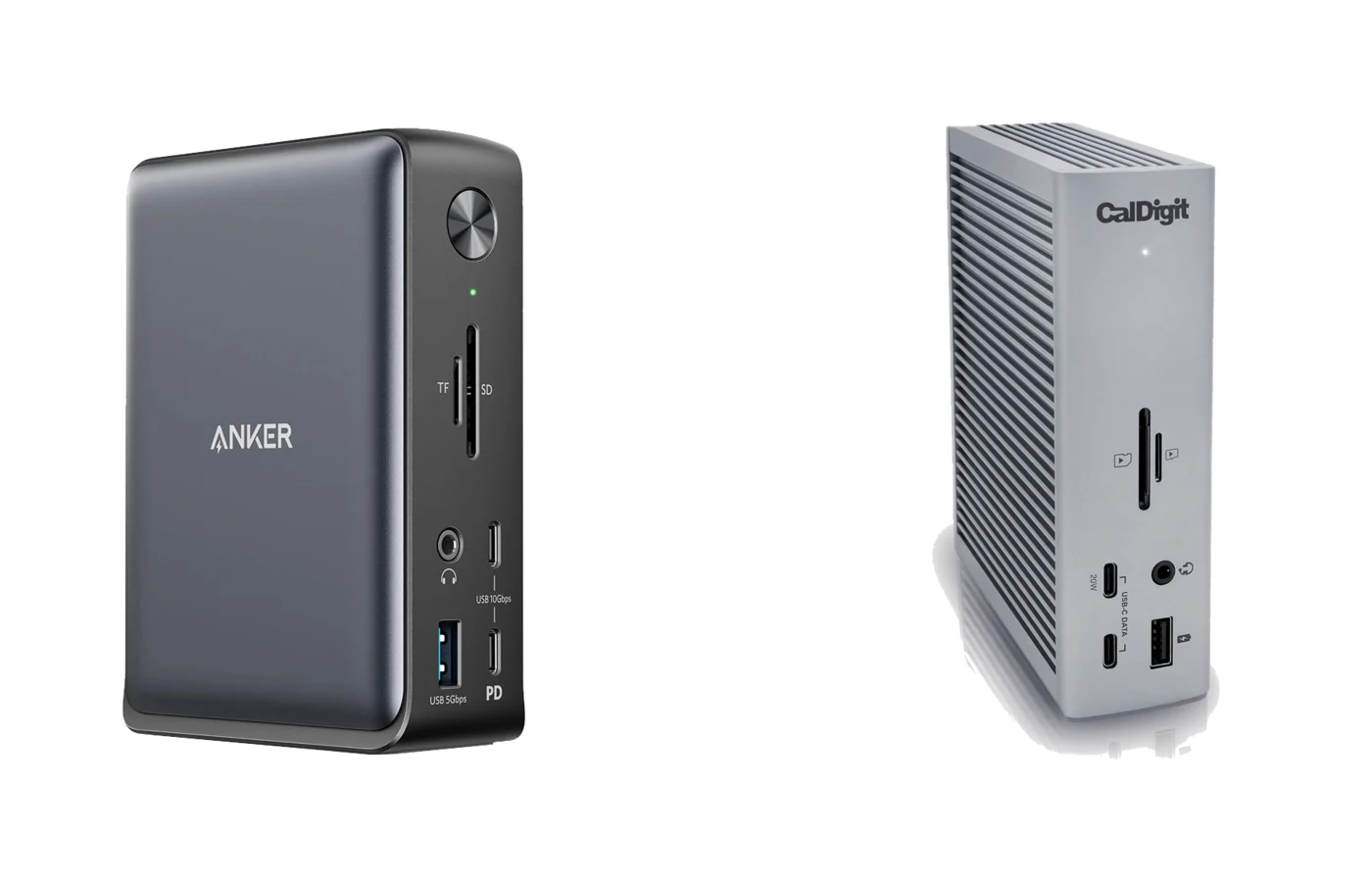
USB-C is the connector, not one fixed capability
A USB-C port can carry different combinations of data, video, and power. That’s why two docks with the same connector can behave very differently. The host laptop, dock controller, cable, and supported standards all have to agree.
The Anker 575 is a useful example. Anker lists a 10Gbps maximum data rate, 85W laptop charging, HDMI and DisplayPort outputs, Ethernet, SD and microSD, audio, and a mix of USB ports. Anker also says the host USB-C port needs DisplayPort Alt Mode for video and Power Delivery for laptop charging.
Thunderbolt raises the floor and the ceiling
Thunderbolt 4 specifies a 40Gbps link and a stronger baseline for display and PCIe data capability. That makes it easier to build a dock around fast storage and multiple demanding peripherals without forcing everything through a 10Gbps USB connection.
A Thunderbolt badge still doesn’t mean every downstream port is 40Gbps. Read the port map. Plugable, for example, lists one Thunderbolt host port on the TBT4-UDZ, while its accessory USB-C port is 10Gbps and doesn’t accept a Thunderbolt device.
Which dock is better for a MacBook?
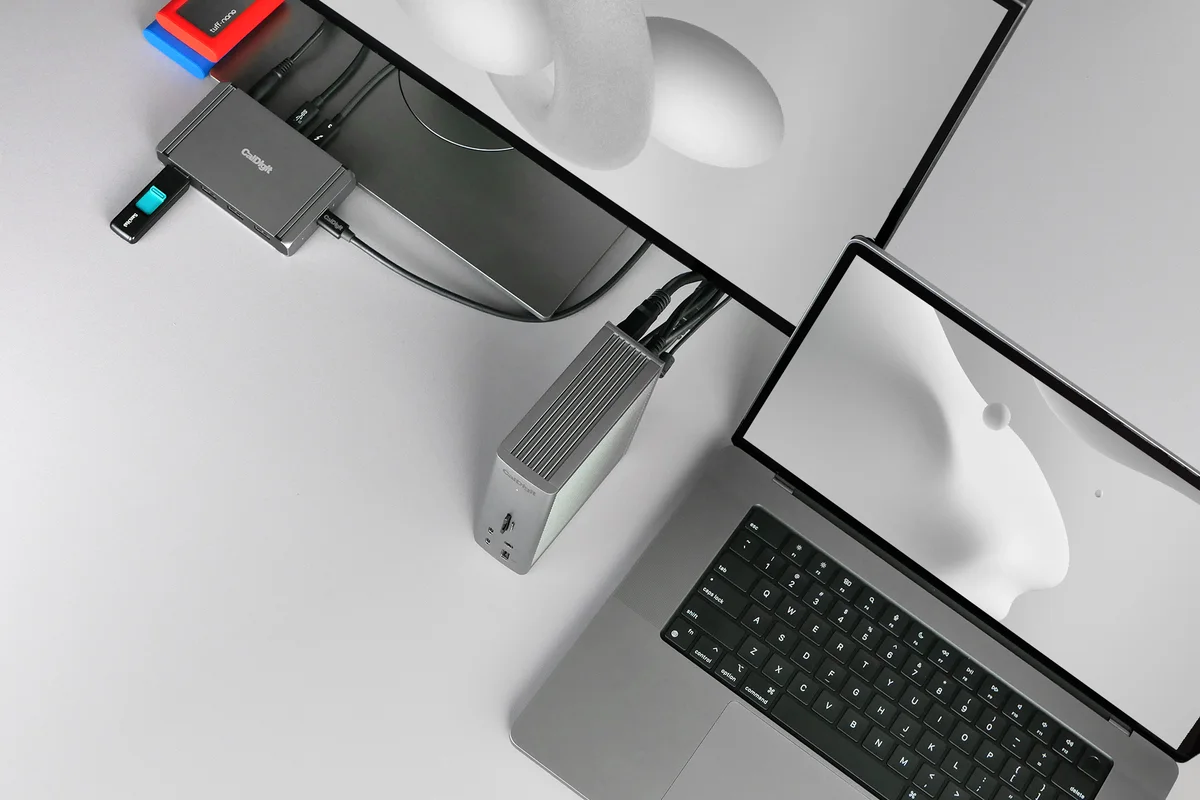
Start with the exact Mac model, not the dock. Apple says the number of external displays depends on the Mac model, resolution, and refresh rate. A dock can expose more video connectors than the Mac can drive as separate desktops.
Current M5 MacBook Air models support up to two external displays, while older base M1 and M2 systems are more limited. Some docks may mirror displays instead of extending them. Check Apple's display-support page and the dock maker's compatibility table before buying.
When a USB-C dock is the smarter buy
- You use one external monitor.
- Your fastest peripheral is a 10Gbps USB device.
- You need Ethernet, card readers, audio, and ordinary USB ports.
- Your priority is one-cable convenience rather than expansion.
- You can verify the dock's display and charging support.
If that’s your desk, a product in the Anker 575 class can solve the problem without paying for bandwidth that sits idle. Our Anker 575 review covers that everyday-desk use case.
When Thunderbolt is worth the money
- You use multiple supported high-resolution displays.
- Fast external storage shares the dock with other traffic.
- You have 2.5Gb networking and the rest of the network supports it.
- You want downstream Thunderbolt expansion or daisy chaining.
- The dock is becoming permanent workstation infrastructure.
The CalDigit TS4 and Plugable TBT4-UDZ show two versions of that idea. CalDigit emphasizes a dense 18-port layout, downstream Thunderbolt, 98W charging, and 2.5Gb Ethernet. Plugable focuses on built-in HDMI and DisplayPort outputs, 100W-class charging, and a clear dual-display path for supported Macs.
The verdict
A USB-C dock is enough for a cleaner everyday desk. Thunderbolt earns the extra money when you can point to the display, storage, network, or expansion feature that pays for it.
If you can’t name that feature, keep the money. If your dock is already the bottleneck in a serious workstation, Thunderbolt is not luxury branding—it's capacity your setup can use.
Choose a dock
Paid links. Gearsentials may earn a commission from purchases.
FAQ
Is a Thunderbolt dock better than a USB-C dock?
A Thunderbolt dock has a higher capability ceiling, but it isn’t automatically the better value. A USB-C dock can be the smarter buy for charging, one display, Ethernet, card slots, and ordinary peripherals.
Do I need Thunderbolt for two monitors?
Not always. The answer depends on the exact laptop, chip, operating system, resolutions, refresh rates, and dock. A dock can’t create a display configuration the computer itself doesn’t support.
Can I connect a USB-C dock to a Thunderbolt port?
Usually, yes. A compatible USB-C dock can work through a Thunderbolt port, but it still operates within the dock's own USB-C bandwidth and feature limits.
Is Thunderbolt worth it for fast external SSDs?
It can be when storage traffic shares the connection with displays, networking, and other peripherals. Check the dock's downstream port speeds and the SSD interface rather than assuming every port runs at 40Gbps.